
To deactivate push notifications on major apps, start by opening each app’s settings and look for notification options. Turn off push notifications or disable specific alert types like banners or sounds. You can also manage notifications through your device’s main settings menu, where you can toggle notifications for individual apps altogether. Adjust these settings based on what’s essential, and if you want more detailed steps, you’re in the right place to learn how to fine-tune your alerts effectively.
Key Takeaways
- Access app notification settings within each app to disable or customize push notifications individually.
- Use device settings under “Notifications” or “App Notifications” to turn off push alerts for major apps.
- Toggle off push notifications for social media, messaging, and news apps via device notification management.
- Adjust specific alert types, like banners or lock screen alerts, to reduce interruptions from major apps.
- Re-enable notifications later if needed, maintaining control over important alerts while minimizing distractions.
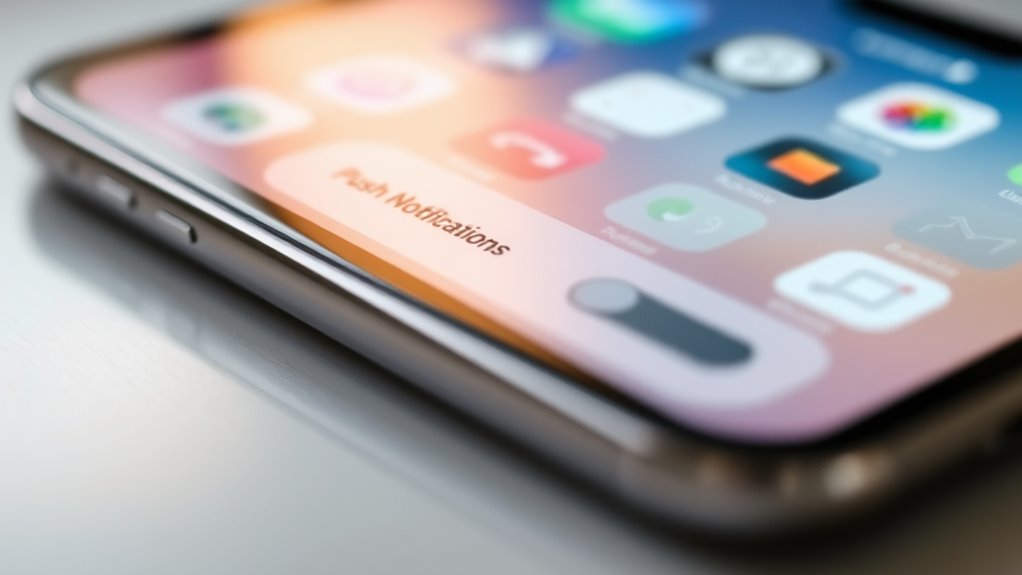
Have you ever felt overwhelmed by constant notifications? It’s a common experience in today’s digital world, where apps ping you nonstop with updates, messages, and alerts. If you’re tired of interruptions, deactivating push notifications is a straightforward way to regain control. The first step is understanding how to manage notifications effectively, which starts with notification management and adjusting app settings. Most smartphones and apps give you the tools to customize or disable notifications entirely, so you don’t have to be bombarded every time you pick up your device.
Start by exploring your device’s notification management options. On both Android and iOS, you can access these settings in your device’s main settings menu. Look for sections labeled “Notifications” or “App Notifications.” Within these menus, you’ll see a list of all installed apps and their current notification status. Here, you can toggle notifications off for individual apps or fine-tune what kinds of alerts you want to receive. For example, you might want to disable banner alerts but keep notifications in the notification center or lock screen. This level of control helps you stay informed without feeling overwhelmed.
Many apps also have their own settings for managing notifications. After installing an app, open its internal settings menu — often found within the app or its website — and look for notification options. Some apps allow you to mute certain types of alerts, set do-not-disturb modes, or customize notification sounds. Adjust these settings based on your preferences; for instance, you might want to disable marketing notifications but keep important messages active. This way, you’re not entirely cut off from essential updates but aren’t constantly distracted by less important ones.
If you want to deactivate push notifications across major apps, it’s often easiest to start with the app settings, then move to your device’s global notification management. For social media apps, messaging platforms, or news apps, turning off push notifications can considerably reduce interruptions. Remember, you can always re-enable notifications later if you find you need updates from certain apps. The key is to find a balance that works for you, allowing you to stay productive and focused without feeling overwhelmed. Additionally, understanding the vetted options for safety and effectiveness can help you make informed choices when managing notifications.

USMECBL Fitness Trackers,Blood Oxygen Heart Rate Sleep Monitor,Smart Band 24/7 Health Monitoring,Calorie Pedometer Steps Counter Activity watchs/Notifications for iOS/Android
【10-14 Day Long Battery Life – Wear It Day and Night】Forget daily charging anxiety. A single, full charge…
As an affiliate, we earn on qualifying purchases.
As an affiliate, we earn on qualifying purchases.
Frequently Asked Questions
Can I Temporarily Disable Push Notifications Without Turning Them off Completely?
Yes, you can temporarily disable push notifications without turning them off completely. You just need to access the app notification settings on your device. Look for push notification toggles within each app’s settings, which often let you pause notifications for a specific period. This way, you stay in control, and you can easily re-enable notifications when you’re ready, without having to disable them entirely.
Will Deactivating Notifications Affect App Functionality or Updates?
Deactivating notifications won’t impact app performance or updates, as only the alerts are paused. Studies show that nearly 60% of users disable notifications to avoid distractions, but app functionality remains intact. The notification impact is minimal; your apps will continue to run smoothly and receive updates in the background. So, you can deactivate notifications without worrying about losing essential features or updates, keeping your experience focused and less interrupted.
How Do I Manage Notification Settings for Multiple Apps Simultaneously?
You can manage notification settings for multiple apps simultaneously through your device’s notification management or app settings menu. On most smartphones, go to Settings > Notifications or Apps, then select the apps you want to adjust. From there, you can customize notification preferences, such as disabling or enabling alerts, without affecting app functionality or updates. This approach helps you control notifications efficiently while maintaining app performance.
Are There Privacy Concerns Related to Push Notifications?
You should be aware that push notifications can raise privacy concerns, especially regarding data privacy and targeted advertising. When you receive notifications, your activity and preferences might be tracked, impacting your privacy. You can protect yourself by managing notification settings, opting out of personalized ads, and being cautious about granting permission. Staying informed and adjusting your preferences helps you maintain control over your data and minimizes targeted advertising.
Can I Customize Which Notifications I Receive After Deactivation?
Yes, after deactivation, you can still customize your notification preferences. You typically access notification settings within each app or your device’s settings menu, where you can choose which notifications to receive or block. Notification customization allows you to control alerts based on your priorities, ensuring you only get the updates that matter most. This way, you maintain control over your notifications without being overwhelmed or distracted.

Hacking Device, Hacker Tool, Hacking Tool, Infrared Controller, Smartphone Ir Remote Controller (Black, for iPhone)
Hacking Device, easy set up & configuration.
As an affiliate, we earn on qualifying purchases.
As an affiliate, we earn on qualifying purchases.
Conclusion
Think of your notifications as a bustling marketplace, full of noise and distractions. By deactivating them, you become the quiet gardener tending to a peaceful garden, free to focus and breathe. Just like pruning overgrown branches, turning off push alerts helps your mind stay clear and calm. Embrace this simple act, and you’ll find your digital world more serene, allowing your true priorities to grow and flourish without constant interruptions.

The Brick Phone Access Blocker Device – Subscription-Free Phone Lock, Limits Smartphone Access, Reduces Screen Time & Improves Focus – High-Grade Magnet & Anti-Slip Silicone
Take Back Control of Your Screen Time: Brick is a physical device that temporarily removes distracting apps and…
As an affiliate, we earn on qualifying purchases.
As an affiliate, we earn on qualifying purchases.

iPhone 17 Pro User Guide for Beginners and Seniors: The Simple, Step-by-Step Visual Guide to Master Calling, Texting, Photos, and Essential Apps with Confidence
As an affiliate, we earn on qualifying purchases.
As an affiliate, we earn on qualifying purchases.